> ## Documentation Index
> Fetch the complete documentation index at: https://docs.stigg.io/llms.txt
> Use this file to discover all available pages before exploring further.
# Activity log
## Overview
Every event on the Stigg platform is audited, and visibility for these events is available via the Activity Log.
Using the Activity Log users can answer the following questions:
1. What happened?
2. When did it happen?
3. Who (or what) triggered the event?
Thus, the Activity Log serves as an **audit log** for actions on the Stigg platform and can also be useful for troubleshooting.
The Activity Log provides accurate information for all events that took place on May 22nd, 2024 or later.
## Event information
Every event includes the following properties:
1. Event name - indicates what happened
2. Timestamp - the timestamp that the event occurred on
3. Trace ID - a unique ID of the event
4. Entity - the Stigg entity that the event is associated with, for example: a plan, customer or subscription
5. Actor - the entity that triggered the event, including: [actor type](#actor-types), name and email address of the user that triggered the event (when relevant) and IP from which the event was triggered
6. Event payload - the event data
### Actor types
| Type | Description |
| ---------------------- | ---------------------------------------------------------------------------------------------- |
| Stigg application | An event that was triggered by a logged in user in the Stigg app |
| Backend SDK | An event that was triggered by the backend SDK, for example: by a customer or migration script |
| Frontend SDK | An event that was triggered by the frontend SDK, for example: by a customer |
| Salesforce | An event that was triggered by the CRM integration with Salesforce |
| Stripe | An event that was triggered by the billing integration with Stripe |
| AWS Marketplace | An event that was triggered by the integration with the AWS Marketplace |
| Import process | An event that was triggered by an import process into Stigg |
| Subscription migration | An event that was triggered by a subscription migration |
| System | An event that was triggered by an automation of the Stigg platform |
| Stigg support | An event that was triggered by a Stigg support representative |
## Access via the Stigg app
### General log
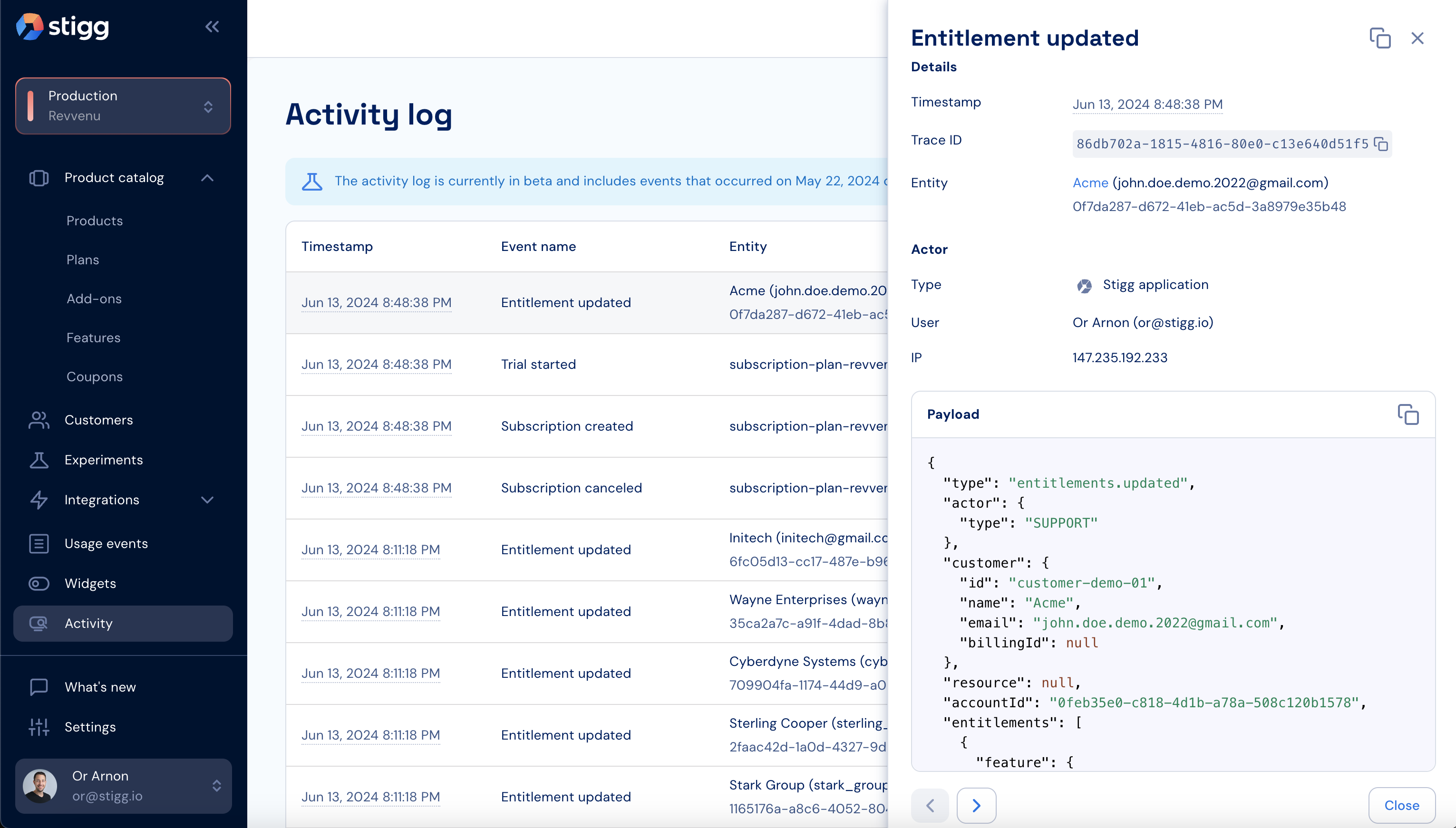
The general log provides visibility for all of the events that took place on the selected Stigg environment and is accessible via the **Activity** item on the left navigation pane.
 ### Entity-specific log
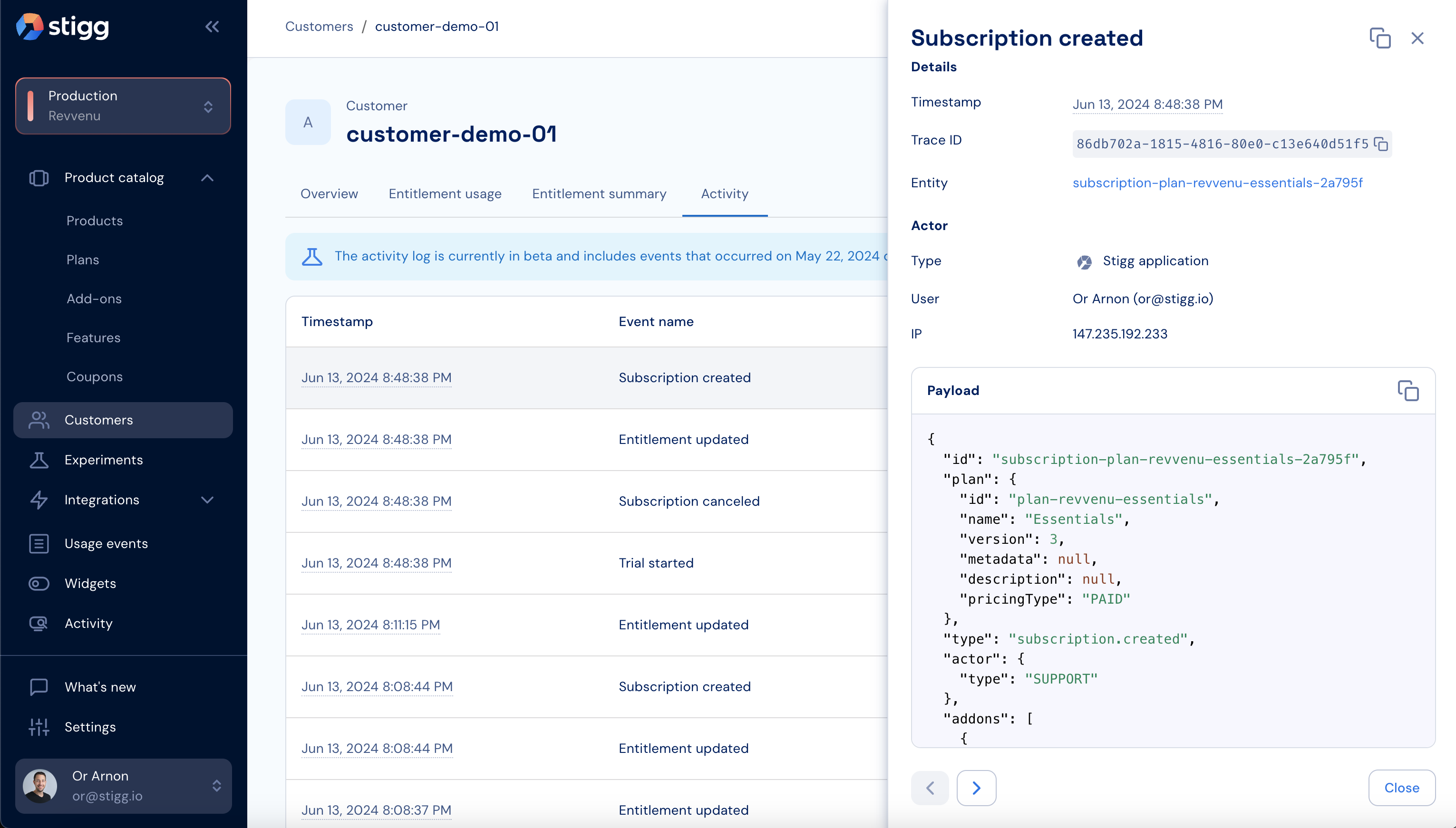
An entity-specific activity log is accessible via the **Activity** tab of the customer, subscription plan and add-on entities.
The entity-specific log includes only events that are relevant for the specific entity; thus, making troubleshooting easier.
### Entity-specific log
An entity-specific activity log is accessible via the **Activity** tab of the customer, subscription plan and add-on entities.
The entity-specific log includes only events that are relevant for the specific entity; thus, making troubleshooting easier.
 ### Copying event links
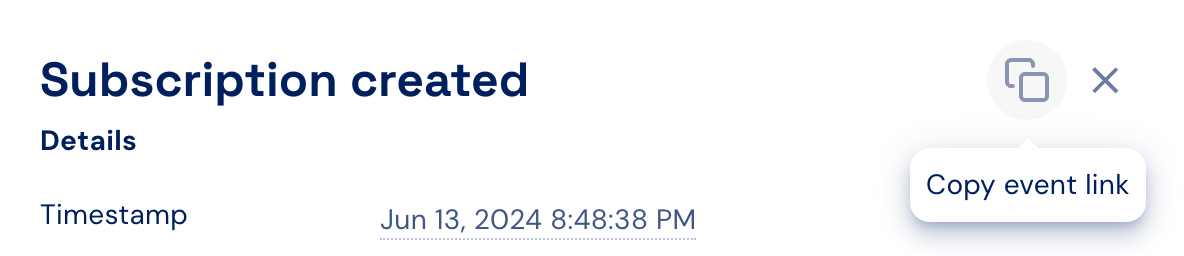
Users can copy links to specific events by clicking on the **Copy event link** button in the header of a specific event.
Event links can be shared with other users that have access to the Stigg app, which can also assist with troubleshooting.
### Copying event links
Users can copy links to specific events by clicking on the **Copy event link** button in the header of a specific event.
Event links can be shared with other users that have access to the Stigg app, which can also assist with troubleshooting.
 ### Navigating between events
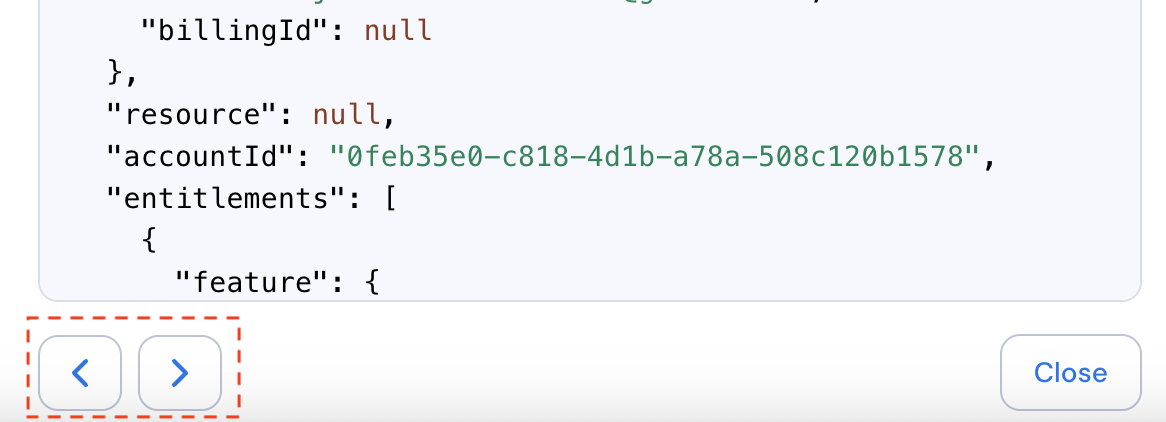
Stigg allows you to easily navigate between different events by either selecting the relevant event from the Activity Log table, or via the arrows at the footer of a specific events.
### Navigating between events
Stigg allows you to easily navigate between different events by either selecting the relevant event from the Activity Log table, or via the arrows at the footer of a specific events.
 ### Advanced filtering
The activity log includes multi-condition filtering that allows you to pinpoint specific events without scrolling through large volumes of data.
### Advanced filtering
The activity log includes multi-condition filtering that allows you to pinpoint specific events without scrolling through large volumes of data.
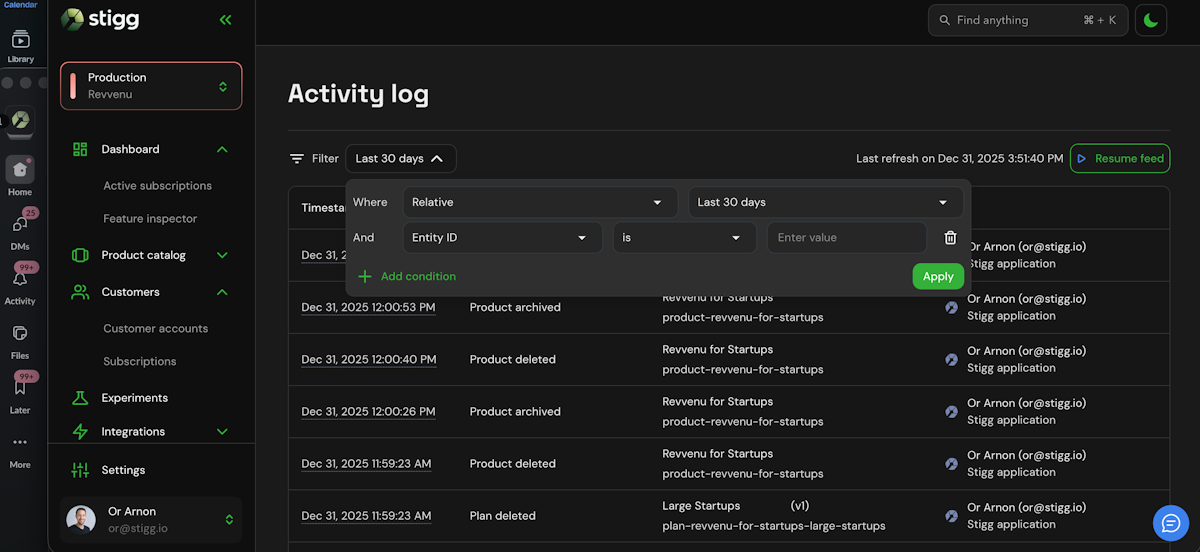 You can filter logs using the following criteria:
* **Timestamp**\
Filter events by relative time ranges (for example: last 15 minutes, last 24 hours, last 30 days) or by a custom date and time range.\
By default, the Activity Log displays events from the last 30 days.
* **Entity ID**\
Jump directly to the full history of a specific entity (such as a customer, subscription, or plan) by filtering on its unique ID.
* **Entity Type**\
Limit results to a specific category, such as Plan, Subscription, Customer, Add-on, or Coupon.\
This is especially useful when auditing changes within a specific part of your pricing or entitlement model.
* **Event Name**\
Isolate specific actions across the platform, such as Customer created, Subscription updated, Product archived, or Entitlements updated.
* **Trace ID**\
Filter by Trace ID to view all events related to a single request. This is particularly useful for debugging and for correlating Stigg events with logs from your own systems.
* **Multiple conditions**\
Multiple filters can be combined using AND logic, allowing for highly targeted queries.
## Access via API
**Query**
```graphql graphql theme={null}
query EventLogs($filter: EventLogFilter!) {
eventLogs(filter: $filter) {
edges {
node {
id
createdAt
accountId
environmentId
eventLogType
entityType
entityId
parentEntityId
actor {
type
name
email
ipAddress
}
}
}
pageInfo {
hasNextPage
hasPreviousPage
startCursor
endCursor
}
}
}
```
**Variables**
```json JSON theme={null}
{
"filter": {
"eventLogType": {
"notIn": ["MEASUREMENT_REPORTED"]
},
"environmentId": {
"eq": ""
}
}
}
```
More details about the GraphQL API can be found here:
## Usage events
Usage events are accessible via a dedicated Usage Event Log:
You can filter logs using the following criteria:
* **Timestamp**\
Filter events by relative time ranges (for example: last 15 minutes, last 24 hours, last 30 days) or by a custom date and time range.\
By default, the Activity Log displays events from the last 30 days.
* **Entity ID**\
Jump directly to the full history of a specific entity (such as a customer, subscription, or plan) by filtering on its unique ID.
* **Entity Type**\
Limit results to a specific category, such as Plan, Subscription, Customer, Add-on, or Coupon.\
This is especially useful when auditing changes within a specific part of your pricing or entitlement model.
* **Event Name**\
Isolate specific actions across the platform, such as Customer created, Subscription updated, Product archived, or Entitlements updated.
* **Trace ID**\
Filter by Trace ID to view all events related to a single request. This is particularly useful for debugging and for correlating Stigg events with logs from your own systems.
* **Multiple conditions**\
Multiple filters can be combined using AND logic, allowing for highly targeted queries.
## Access via API
**Query**
```graphql graphql theme={null}
query EventLogs($filter: EventLogFilter!) {
eventLogs(filter: $filter) {
edges {
node {
id
createdAt
accountId
environmentId
eventLogType
entityType
entityId
parentEntityId
actor {
type
name
email
ipAddress
}
}
}
pageInfo {
hasNextPage
hasPreviousPage
startCursor
endCursor
}
}
}
```
**Variables**
```json JSON theme={null}
{
"filter": {
"eventLogType": {
"notIn": ["MEASUREMENT_REPORTED"]
},
"environmentId": {
"eq": ""
}
}
}
```
More details about the GraphQL API can be found here:
## Usage events
Usage events are accessible via a dedicated Usage Event Log: